CygNet Service Migration Utility
Note: Although the CygNet Service Migration utility performs many device template file (.dtf) checks and automatic updates, it does not catch all possible template errors. After running the CygNet Service Migration Utility, always use the CygNet Device Template Manager Utility to check your templates. Errors uncovered by the CygNet Device Template Manager Utility must be repaired manually.
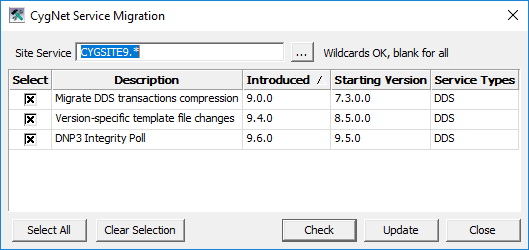
The CygNet Service Migration utility (SvcMigration.exe) is a database service transformation tool. It enables CygNet to make database service-wide updates on a version-by-version basis. Usually, the update options displayed by the CygNet Service Migration Utility are required; affected services will not operate correctly if the changes are not made. However, once you have made changes for a version on a given service, those changes do not need to be made again for that service. The list of available updates changes from CygNet version to version.
|
CygNet Service Migration utility |
For more information, see the following subsections below:
- To Perform a Service Migration
- CygNet Service Migration Utility Update Options
- CygNet Service Migration Utility Properties
See the CygNet v9.8 Upgrade Procedure for more information.
To Perform a Service Migration
- Ensure that all database services against which you plan to run the CygNet Service Migration Utility are running.
- Go to the CygNet\Utilities directory on the host server and open the CygNet Service Migration Utility (SvcMigration.exe). The dialog box above appears.
- At the Site Service box, select the Site.Service(s) to which this service migration applies. You have three options:
- If you want to update one or more specific database services, click the Browse button and select a specific database service from the Select Service dialog box. In this scenario, you must check and update database services one at a time.
- If you want to update all database services for a specific site, type the name of the site followed by a period and wildcard asterisk. For instance, you’d type CYGSITE.*
- If you want to update all database services on a CygNet domain, leave the Site Service field blank. Be aware that this means that all database services across all sites on the same domain will be affected.
- Using the Select check boxes, select (or unselect) the service migration options you want to apply to the selected Site.Service(s). Click Select All if you want to apply all available service migration changes.
- Click Check to preview the changes that the CygNet Service Migration Utility will make to your selected Site-Service(s). A dialog box similar to the following appears:
|
Click the thumbnail to see an example |
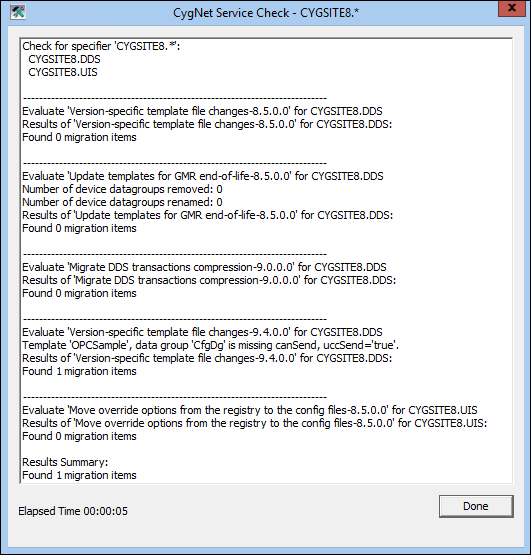
- Closely review the service migration changes that will occur if you choose to update. When you are done, click Done.
- At the CygNet Service Migration dialog box, click Update. Doing so updates all migration items called out in the CygNet service check.
- A dialog box appears asking, "Are you sure you want to migrate these n services?" If you are sure, click Yes. If you are unsure, click No.
- A dialog box report appears informing you of all the service migration changes that occurred and whether the corrections were successful or not. Review the report for any exceptions, then click Done.
- When you are finished, click Close.
CygNet Service Migration Utility Update Options
The following table lists all of the update options displayed in the current version of the CygNet Service Migration Utility. The list of available updates changes from CygNet version to version. The columns are sortable, making it easier to determine which option was added for a particular version.
| Update Option | Description | Introduced | Starting Version |
|---|---|---|---|
|
Migrate DDS transactions compression |
Updates any records in the DDS database that are stored using a deprecated compression format. |
9.0.0 |
7.3.0.0 |
|
Version-specific template file changes |
Updates changes to template files to specify that canSend/canRecv/uccSend/uccRecv=true for the "Configurable Data Group" (CfgDg). |
9.4.0 |
8.5.0.0 |
|
DNP3 Integrity Poll |
Updates the definition of any UIS commands named INTEGRITY to use a new special UIS command INTEGRITY, which will get events for all classes 1-3 followed by class 0 (all points) in a single message, instead of getting data in two separate messages. See DNP3 Polling Notes for more information. |
9.6.0 |
9.5.0 |
CygNet Service Migration Utility Properties
The following table lists and describes CygNet Service Migration Utility properties.
| Property | Description |
|---|---|
|
Site Service |
Use the Browse button to select a single, specific Site.Service to check and update. You can also use wildcards (*) to select a subset of available database services on a specific domain to check and update. Or, finally, leave this field blank to check and update all database services on a specific domain. |
|
Select |
This column displays check boxes to indicate which service migration changes you want to accept. |
|
Description |
This column displays descriptions of the available service migration changes. |
|
Introduced |
This column indicates the CygNet version in which the service migration option was added. |
|
Starting Version |
This column displays the CygNet version to which a service migration change applies. For instance, if a version displayed is 8.5.0.0, best practice strongly recommends or requires that if you are using or plan to use v8.5.0.0 or later, select this option to update. Note: If you have accepted a specific service migration change in the past, you do not need to re-accept that change again. For instance, if you already converted service references, you do not need to perform that update again during an upgrade. |
|
Service Types |
This column displays the database service types affected by a service migration change. |
|
Select All |
Enables you to select all available service migration change options at once. |
|
Clear Selection |
Enables you to clear all selected service migration options at once. |
|
Check |
Enables you to perform a preliminary check of all affected services. A report generates in a CygNet Service Check dialog box with useful notes about what changes would occur if you were to update. Items displayed are those items for which there is a discrepancy and which will be corrected by the service migration when you click Update. |
|
Update |
If you are ready to perform a service migration on the items you checked in the CygNet Service Migration dialog box, click Update. This updates and corrects all migration items noted in the CygNet Service Check dialog box when you clicked Check. |
|
Close |
Click Close to close the CygNet Service Migration dialog box. |


